Melting
Changelog

Announcements

Improved

[260715] Chat Room Feature Update

Improvement

For a more convenient experience on both mobile and PC, the new reply view has been updated from a popup to a bottom-sheet format that slides up from the bottom!

You can also select your frequently used messages directly in the new reply view and enter them with ease—no need to type them out again and again.

We'll keep working hard so you can continue enjoying your conversations with your characters.

Enjoy your Melting time today!

Improved

[260715] Melt your items to create new memories!

Collecting Memory Shards

Melt your items to turn them into Memory Shards and reforge brand-new items! Melting an item you own gives you 1 Memory Shard.

Get a New Item with 5 Memory Shards

  • Once you collect 5 Memory Shards, you can choose any character you like and reforge 1 new item.
  • You can only reforge items for characters who already have a bag — meaning characters you've received at least one item from.
  • You won't know which item you'll get until it's finished! You can check the reforged item in the selected character's bag.

Notice

  • You can reforge Memory Shard items until July 31, 2026, 23:59 (KST)!
  • Reforged items are randomly created from What's In Your Bag items.
  • Melted items cannot be restored.
  • Memory Shards are gathered together no matter which character's item you melt. When you reforge again, you can freely choose which character receives the item.
  • Items deleted before Memory Shards were introduced are not included.
  • You cannot reforge an item for a character whose bag is full. Please tidy up that character's collection items in advance before using this feature.

We're working hard to make Melting even better.

Enjoy your Melting time today!

Improved

[260714] Meet the new Notifications!

Notifications have been redesigned so you can catch every update at a glance, without missing a thing!

Improvement

You can now see all your updates in Notifications at a glance. Notifications are organized by tab!

  • [All]: See every notification in one place, sorted by time.
  • [Characters]: Updates from characters — new messages, new opening scenes, and weekly new series, all in one spot.
  • [Activity]: Comments, replies, likes, and new followers are collected here.
  • [Announcements]: Check Melting's announcements.
  • [Other]: Reward history like daily check-ins and tickets is gathered here.

There are new features, too!

  • A new [Events] tab has been added. Keep track of the time remaining for ongoing events and never miss the winner announcements for ended events.
  • Character notifications now show the character's profile picture, so you can instantly tell which character sent it.
  • The latest announcement stays pinned at the top of Notifications, so you see important news first.

Keep up with all your updates with ease!

Enjoy your Melting time today!

Improved

[260713] Edit Your Persona Right in the Chat

Improvement

You no longer need to go to My Page to edit your persona description —
now you can edit it right in the chat room!

How to Use

  1. Tap the ⋮ button at the top right of the chat room.
  2. In [My personas], select the persona you want to edit.
  3. Edit the [Persona description], then tap [Save and continue chatting].

Notice

  • You can freely write things like personality, speech style, and your relationship with the character.
  • Saved changes will be reflected naturally from your next conversation with the character.
  • Other basic details besides the persona description can be edited in [My Page] > [Personas].

Keep the conversation flowing and immerse yourself with the persona you want!

Enjoy your Melting time today!

New

[260713] Chat Room Feature Update

New Feature

"Light Mode" for chat rooms — one of your most requested features — is finally here!
Choose the mode that suits you and immerse yourself in your conversations even more!

How to Use

  1. Tap the settings menu at the top right of the chat room
  2. In the [Settings] tab, select [Light] under [Theme]

We'll keep working so you can continue enjoying conversations with your characters.

Enjoy your Melting time today!

Improved

[260709] Suggested Replies Update

Now you can get suggested replies that better match the flow of your conversation!

Improvements

Here's what's new with suggested replies:

  • They now better reflect your relationship with the character, the situation, and their speaking style.
  • We've adjusted them to offer choices that help keep the conversation going.

We're listening to your feedback and improving things one step at a time.

Have a great time on Melting today!

Improved

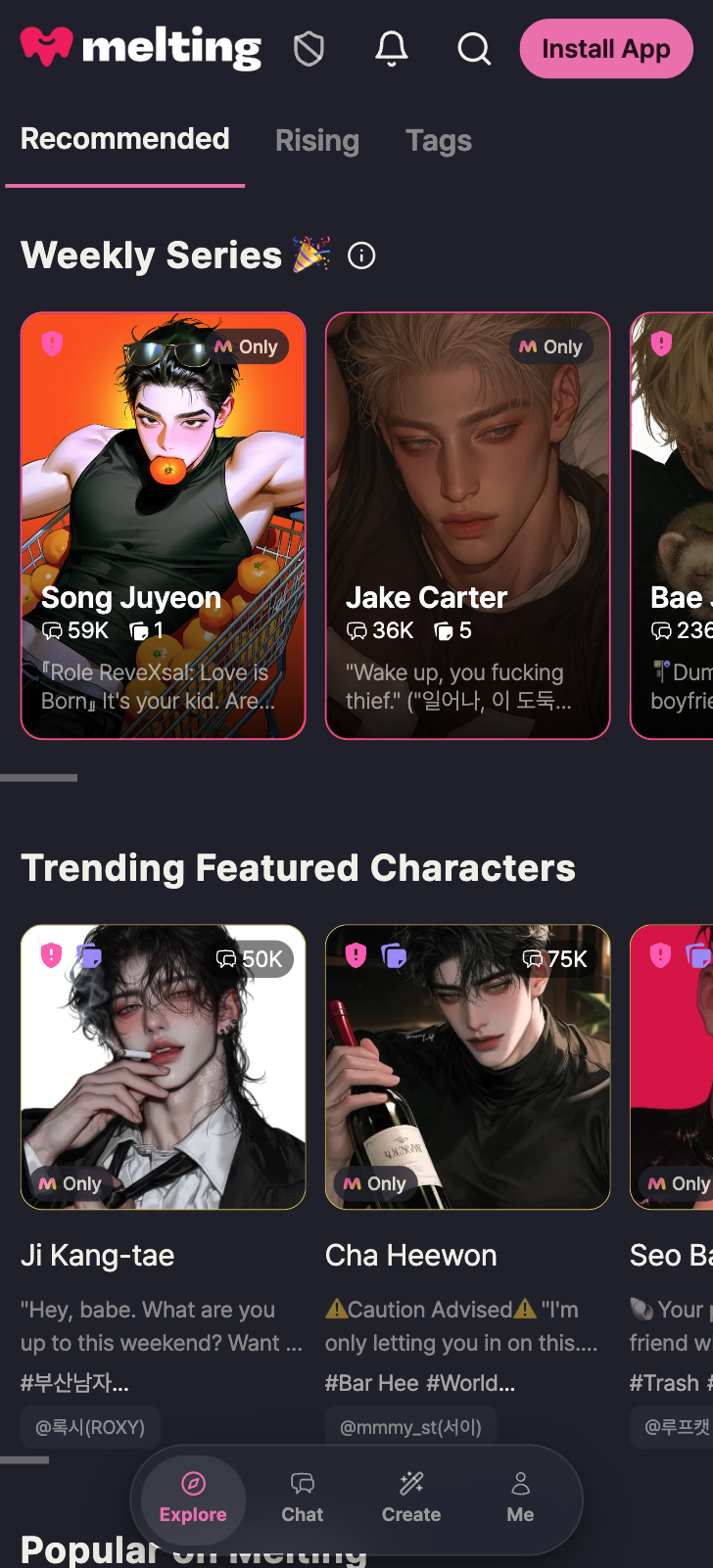
[260708] A Fresh New Look for Melting

Melting's design has been refreshed across the app.
Colors and shapes now follow one unified tone, making every screen cleaner and easier to take in.

The bottom menu has also been redesigned, so you can browse characters all the way to the edge of the screen.
While you're browsing characters, the menu shrinks down to just icons, giving you even more room on the screen.

스크린샷 2026-07-08 오후 6.25.16
  • Screenshot of the Melting main screen as of July 8, 2026, 6:00 PM (KST).

We'll keep working to bring you an even more enjoyable Melting experience!

Enjoy your Melting time today!

Improved

[260707] Auto-Play Feature Now in Affection Mode

The beloved Affection Mode is getting an update with auto-play!

Feature Update

The auto-play feature you love in Story Mode is now available in Affection Mode!
You can also choose the direction while auto-play is running!

How to Use

  1. Tap the "Auto" button next to the text input in an Affection Mode chat.
  2. Send an auto-play message or choose your preferred direction.
  3. The story continues automatically with your character.

Notes

  • Chats in auto-play will still affect affection levels.
  • Auto-play uses Cones just like regular chats.

We're always working to make Melting better.

Enjoy your Melting time today!

Improved

[260707] Chat Input Update

We've improved the chat input so you can find and use your favorite features more easily while immersed in conversation!

Improvements

Dialogue and Action Mode Switching

Previously, you had to manually move the cursor when switching between action descriptions and dialogue.
Now you can simply select the mode with a button and focus on typing.

  • A [Dialogue | Action] button has been added above the message box.
  • On PC, you can also switch using the Tab key.

Command Autocomplete

Just type ! in the message box to see a list of available commands.

Auto-Progress Update

The Auto-Progress button has been moved next to the message input for easier access.

  • Suggested replies can now be found in the upper right of the message box.
  • You can collapse the auto-progress options using the fold (^) button in the upper right.
스크린샷 2026-07-07 오후 5.03.14

We'll keep working to make your conversations with characters even more enjoyable.

Have a great Melting time today!

New

[260703] Story Mode Auto Progress: Direction Picker is Live

We've added a new way to make Story Mode auto progress even more fun!

📌 New feature

  • Character intervention: Another character appears.
  • Scene change: Shift to a new place or situation.
  • Incident: A new incident occurs.
  • Just like before, you can also type your own direction to use auto progress.

Choose the direction of the story and enjoy a more immersive experience!

We'll keep working to make your chats more fun and enjoyable.
Have a wonderful Melting Time today!

Improved

[260702] Confirmation Popup When Canceling a Comment

Improvement

We've added a confirmation popup so the comment you're writing won't disappear from an accidental tap on the cancel button!

How to Use

  • If you press [Cancel] while writing a reply that already has content, a "Are you sure you want to cancel?" popup will ask you to confirm once more.
  • The same confirmation popup appears when you've changed the content while editing a comment.
  • If nothing has been written, it cancels right away, just as before.

We're working hard to make Melting even better.

Enjoy your Melting time today!

Improved

[260702] Better Context Continuity in Story Mode

We've improved how conversations carry over their previous flow in Story Mode!

Improvement

  • When a scene changes, the story now picks up from what just happened more naturally than before.
  • The mood and emotional flow of the conversation now carry over more smoothly, too.
  • We've reduced moments where the story seems to repeat the same actions or slip back to an earlier situation.

We're working hard to make Melting even better.

Enjoy your Melting time today!

Improved

[260630] Affection Mode Update

We've improved Affection Mode—loved across so many countries—so it can hold deeper, more delicate stories!

Improvement

  • Responses are now generated faster.
  • Characters follow along more naturally during scene transitions.
  • Characters respond more sensitively to messages you write with emotion.
  • Even when the scene changes, the relationship you've built with your character carries on naturally.

We'll keep improving Story Mode, too. Stay tuned!

We're working hard to make Melting even better.

Enjoy your Melting time today!

New

[260626] Opening Scene Settings Update

New Feature

When creating a character, the relationships and situations that change with each Opening Scene can now be managed separately through each scene's own settings!

Creator Guide

  1. Go to the Create menu > Character Settings and select the Opening Scene step.
  2. In the 'Opening Scene Settings' area below each Opening Scene, write the background, situation, and relationship for that scene.
  3. Opening Scene Settings apply only to that Opening Scene's conversation.
  4. If left blank, the conversation will proceed using only the character settings, just as before.

We're working hard to make Melting even better.

Enjoy your Melting time today!

New

[260625] Card Payments Now Available on the Web

✨ New Feature
You can now pay by credit card on Melting Web!

💳 How to Use

  • Visit the Melting website. Go to Melting Web
  • Go to My Page > Cones and select the Cone product you'd like to purchase.
  • Choose VISA / Mastercard / JCB and proceed with the payment.
  • Once the payment is complete, the Cones will be added to your account.

💡 Notice

  • Web payments are available only in countries outside of South Korea.
  • Payments are charged in USD (US Dollars).
  • Depending on your card issuer's policy, a payment fee may apply, and the actual charged amount may vary.
  • Please check your card issuer's policy regarding payment fees.

Melting will keep working hard to provide you with an even more convenient service.

Enjoy your time with Melting today!

New

[260623] Do I *have* to use my summer vacation ticket with that character? 👀

A few days ago, do you remember the summer vacation ticket your character secretly bought so they could go away with you?

Actually, there was one secret about that ticket… that we hadn’t told you yet. 🤫

✨ What’s changed?

When you use a ticket you’ve obtained, in addition to the existing “Use with ticket owner character” option, a new feature has been added: “Use with another character”!

You can now leave on a summer vacation and take a snapshot with another character who’s stolen your heart, instead of the ticket’s original owner.

🎫 How do I use the summer vacation ticket?

  1. After obtaining a ticket, if you chat with another character 30 times or more, that character becomes someone whose heart you’ve “wavered” toward 💘
  2. When you’re ready to use the ticket, tap “Use with another character” and select a character who meets the conditions to go on a summer vacation together!
  3. Of course, you can still go on a summer vacation with the original ticket owner character as well!

⚠️ Please keep this in mind

  • The ticket is one of the default items in What’s in your bag? (와츠인유어백) Season 2, and you can receive it at random during the event period.
  • You can check it in My Page > What’s in your bag?
  • Once you use a ticket, it disappears, but a summer snapshot will remain in the spot of the character who went with you.
  • The ticket is valid for 3 days. If you don’t use it within 72 hours after obtaining it, it will be deactivated.
  • Tickets and snapshots can each be saved or shared in character comments. However, after using a ticket, it becomes difficult to save or share it in comments.

📅 When?

June 24 (Wed) 00:00 ~ July 3 (Fri) 23:59 (KST)

If you use the ticket with the character you’re drawn to, even if it’s not the one who gave you the ticket, a snapshot of a summer moment where it’s just you and the character you chose will be left behind.

With the ticket that character bought for you… who do you want to go away with?

New

[260619] Summer is coming! New Summer Items in What's In Your Bag

🎫 A summer vacation ticket your character secretly bought?!

Now that early summer is here, when you pull out your character's belongings during a chat, a summer vacation ticket hidden inside the bag appears too!

Truth is… this ticket was secretly bought so they could go away with you 🤫

🎫 What tickets can appear?

The travel ticket theme comes in these 5 types!
Boarding Pass · Stay Voucher · Entry Pass · Experience Pass · Rental Pass

📸 How do you use a ticket?

Use a ticket stored in the What's In Your Bag menu, and a summer vacation Snapshot of the two of you appears like magic!
The seat beside you on the plane, a resort at sunset—a scene that belongs to you and that character alone is captured as a photo.

⚠️ Please remember

  • You can find your tickets at My Page > What's In Your Bag.
  • When you use a ticket, it disappears, but in its place a summer Snapshot of just the two of you remains.
  • Tickets are valid for 3 days. If not used within 72 hours of being acquired, they become inactive.
  • You can save the ticket and the Snapshot, or share each to character comments. Once a ticket has been used, saving or sharing it to character comments is no longer available.

📅 Event Period

Mon, Jun 22, 00:00 – Fri, Jul 3, 23:59 (KST)

Summer vacation tickets appear alongside the existing items in What's In Your Bag 🎒

Shall we set off into the summer your character secretly prepared? 🏖️💗

Improved

[260616] Bulk Chat Cleanup · Reading Position · Sign-in Method Update

Improvement

🗂️ Bulk Chat Cleanup

Now you can pick multiple chats and tidy them up all at once. Clear out the chats you no longer read in one go, and gather the ones you treasure into folders to keep them neat and easy to find!

How to Use

  1. Tap [Select] at the top right of your chat list.
  2. Check the chats you want to organize.
  3. You can delete them in bulk or move them to a folder.
    • Deleted chats can be restored within 7 days.
    • Even if you [Remove from current folder], the chat isn't deleted and stays in your full list.

New Feature

📖 Reading Position Indicator

When you scroll back through past chats, you can now see where you are in the whole conversation!

How to Use

  • As you scroll up to reread past chats, your current position briefly appears on screen and then fades away.

🔐 Sign-in Method on My Page

Now you can see the email you signed up with along with the sign-in method you used, all at a glance on My Page. Next time you log in, you'll get straight into your account without any guesswork!

How to Use

  • Go to My Page > profile area and check the 'Sign-in method' item.

We're working hard to make Melting even better.

Enjoy your Melting time today!

Improved

[260612] Improved Command Usability

Improvement

🔧 Commands are now easier to see

  • We fixed an issue where long commands, or commands on smaller screens, could appear cut off in the [!Command] list!
  • Now you can see every command at a glance, with nothing left out!

We're working hard to make Melting even better.

Enjoy your Melting time today!

Improved

[260611] Behind Mode is Now Live! 🎬

You can now use Behind Mode even in Affection Mode conversations!

If you want to chat about something off-topic without breaking the flow, [Behind Mode] lets you exchange side messages within the same conversation context — without interrupting the main story.

How can I use it?

Feel free to say anything in Behind Mode that you'd rather not save to the conversation! No need to create a branch or use "Return to this point" — just use it whenever you want. (e.g. great for running commands like !community without leaving a trace in the main chat flow.)

How to Use

① Tap the [Behind Mode] button on the right side of the chat input to turn it ON.
② Type freely — say whatever you'd like.
③ Turn Behind Mode OFF to seamlessly return to the main conversation flow.

Notice

  • Behind Mode messages are not saved to the main chat and have no effect on it.
  • In Behind Mode, the most recent reply remains on screen.
  • Up to 5 Behind Mode messages are retained; older messages are automatically cleared.
  • Behind Mode messages are cleared after 1 turn of the main conversation.
  • You can reroll to get a new reply to the same message.
  • Behind Mode messages consume Cones just like regular messages.

We're working hard to make Melting even better.

Enjoy your Melting time today!

New

[260609] Behind Mode 🎬 is now open!

New Feature

Want to have a quick side conversation without breaking your story flow?

Turn on [Behind Mode] to exchange free-form side messages within the context of your current conversation — without disrupting the original flow.

How can you use it?

In Behind Mode, feel free to say anything you don't want saved to the conversation! You can use it without creating a branch or using "Return to this point."
(ex: Great for running commands like !community without leaving a trace in your main conversation.)

How to Use

① Tap the [Behind Mode] button on the right side of the chat input to turn it ON.

② Type whatever you'd like — this won't be added to your main conversation.

③ In Behind Mode, only the most recent reply is shown on screen.

④ Deactivating Behind Mode returns you smoothly to your original conversation flow.

Notice

  • Behind Mode is only available in Story Mode.
  • Messages exchanged in Behind Mode do not affect your main conversation.
  • Rerolling in Behind Mode generates a new reply to the same question.
  • You can view up to 5 Behind Mode replies using the < / > buttons at the bottom right of the screen.
  • Behind Mode messages consume Cones just like regular messages.
  • Messages exchanged in Behind Mode do not affect your main conversation.

We're working hard to make Melting even better.

Enjoy your Melting time today!

New

[260605] Chat Snippet Sharing Update

New Feature

You can now pick your favorite lines from a chat, turn them into an image, and either save them or share them in the character's comment section!

Details

  • When you drag the line you want to share during a conversation, a [Share] button will appear. On mobile, you can long-press the line and adjust the selection range.

  • On the share screen, you can customize your own card by choosing [Background], [Background Color], [Snapshot], [Text Color], and [Text Size].

  • Tap the card image once to switch the text position between top and bottom. When you're done, you can [Save] the image or [Share as Comment].

How to Use

  1. In the chatroom, select the line you want to share (on mobile, long-press to adjust the range).

  2. Tap the [Share] button that appears to move to the card editing screen.

  3. Customize your card by choosing [Background], [Background Color], [Snapshot], [Text Color], and [Text Size].

  4. Tap the card image to adjust the text position (top/bottom).

  5. Export your finished image with [Save] or [Share as Comment].

💡 Please Note

  • Shared images are generated in a 1:1 ratio.

  • If you have any snapshots received from [What's in Your Bag] with that character, you can use them as the background for your shared image. When you select a snapshot, the text will be placed at the bottom by default.

We'll keep working hard to make Melting even better. Have a great Melting time today!

Improved

[260602] Meet more characters in the Melting Popular · Rising Rankings!

Improvement

We've updated the Melting Popular and Rising Rankings so you can discover even more characters! You'll now be able to explore characters all the way up to 50th place.

How to Use

  • The Melting Popular · Rising Rankings will be updated starting June 3rd (KST).

  • You can check it via the Melting Popular Rankings in Explore menu > Recommended tab.

  • You can check it via the Rising Popular Rankings in Explore menu > Rising tab.

We're working hard to make Melting even better.

Enjoy your Melting time today!

New

[260602] What's in Your Bag Snapshot Art Style Event 🎨

Discover new art style snapshots in What's in Your Bag Season 2 items!

The new art style snapshots capture your moments with characters in a smoother, more refined illustration style — feel their unique atmosphere more vividly than ever!

📅 Event Period

  • June 2 (Tue) ~ June 15 (Mon) 11:59 PM (KST)

📌 Please Note!

  • During the event period, new art style snapshots will appear randomly alongside the existing art style in What's in Your Bag Season 2 items.

Find your new art style snapshot now!

New

[Notice] Service Stabilized and Temporary Access Issue Resolved

Hello, this is the Melting Operations Team.

The service access issue that occurred for about 40 minutes today has now been fully resolved, and you can use the service normally.

  • Issue time: 2026. 05. 30. 07:30 ~ 08:10 (KST)

  • Issue details: Unable to access the service and delays in some features

  • Cause: Network failure

We apologize for the inconvenience this may have caused and ask for your understanding. We will do our best to provide a stable service environment so you can continue enjoying your conversations.

Thank you.

Improved

[260527] Activity Profile and Conversation Profile Now Separated

Improvement

You can now manage your activity profile and conversation profile separately!

Your activity profile — shown to others in character comments, creative activities, and more — and your conversation profile — used when chatting with characters — can now be managed independently.

How to Use

  • To change the user profile in an existing chat room, update the default profile in Multi-profile.

  • Your activity profile can be managed in My Page > My Info.

  • Your conversation profile can be managed in My Page > Multi-profile.

We're working hard to make Melting even better.

Enjoy your Melting time today!

Fixed

[260522] Apple Login Bug Fix

Bug Fix

You can now log in to Melting with your Apple account on Safari and Chrome web browsers.

Log in now on the web and start enjoying Melting.

Enjoy your Melting time today! Thank you.

Fixed

[Notice] Service Restoration Update

Hello, this is the Melting Operations Team.

First and foremost, we sincerely apologize for the extended service disruption caused by an unexpected technical issue during our database migration. We are pleased to inform you that all recovery work and stability testing have been completed, and the service has been fully restored.

In the interest of transparency and to rebuild your trust in our service, we would like to share the details of the incident and our response.

  1. Cause of the Incident Today's maintenance was a database environment migration aimed at improving service performance and strengthening our incident response capabilities. Despite multiple rounds of internal testing prior to the migration, an unexpected system crash was discovered immediately after switching to the new environment — one that only occurred when large-scale data processing coincided with specific search conditions.

This was an exceptional situation that could not be reproduced in the pre-maintenance test environment. However, with data safety and zero data loss as our absolute top priority, resolving the root cause required additional time, which led to the extended recovery delay.

  1. Service Restoration Confirmed We have confirmed that all features are functioning normally in the new database environment, and have verified that all user data has been safely preserved without any loss.

  • Incident period: Thursday, May 21, 2026, 08:00 – 11:33 (KST)

Through this infrastructure migration, Melting has established a more robust and faster service foundation.

However, as the service operator, we feel a deep sense of responsibility for exceeding the planned maintenance window and causing prolonged inconvenience to our users. We will thoroughly review our operational processes to ensure this does not happen again, and we are committed to earning back your trust through a more stable service.

Thank you.

Melting Operations Team

Fixed

[Notice] Service Maintenance Delay and Temporary Disruption Update

Hello, this is the Melting Operations Team.

We are writing to update you on the current situation and the steps we are taking, as the service maintenance that began at 5:00 AM today has been delayed beyond the scheduled time, and some features were temporarily unavailable during the process.

This maintenance was a migration project aimed at fundamentally improving our core database (DB) infrastructure. We prepared thoroughly with multiple rehearsals and internal tests to minimize any unexpected variables. However, after switching to the new environment, we encountered exceptional instability that only emerged when combined with actual user behavior patterns and live traffic.

These issues have been identified as edge cases that are difficult to reproduce in standard pre-maintenance testing environments. We are currently working closely and in real time with our database partner to resolve the root cause.

Service is currently accessible, but you may experience intermittent instability in some features. The Operations Team is taking all necessary measures swiftly, with full service restoration and data protection as our top priorities.

We sincerely apologize for the extended inconvenience caused by the delay beyond the planned maintenance window. We will provide timely updates through further notices as the situation develops, and we will do our utmost until complete stability is restored. We appreciate your understanding and patience.

Thank you. Melting Operations Team